Site Products
Table Tennis FAQ: Rules & Equipment

FAQ: Amicus Robots

1. The Amicus App appears to have crashed; it will not open.

Please check these settings:

  1. Be sure the robot is connected to power. To check, cycle power off/on by unplugging and then re-plugging. Upon re-plugging, the Deflector Plate should do a head reset. Power must be reaching the Power Circuit Board for a connection to be made between tablet and robot.
  2. Check Settings>Location to be sure it is on.
  3. Check Settings>Apps & notifications>Amicus>Permissions. Be sure you have granted the app location privileges. While you’re at it also grant it Microphone and Storage (or Files & Media) permissions.
  4. Check Settings>Connected Devices>Connection preferences>Bluetooth. Be sure Bluetooth is on. Then make sure that Amicus BTLE is not paired or connected (in Settings>Connected Devices>Pair new device). It should show up in the list of available devices, but it is very important that it not be paired or connected in Bluetooth Settings.
  5. Do you have the Amicus app loaded on 2 or more devices? If so, on all devices except the one you are currently using, close the app, shut off that device, or move that device more than 33 feet from the robot. Only one connection between a device and the robot is allowed. If the app is running on another device, and since the app automatically tries to connect with the robot, those other devices can interfere with the connection between the device you’re using and the robot. This is also why you cannot connect the robot through the Bluetooth settings. That counts as a connection, and since only one connection is allowed, the Amicus app itself cannot connect.
  6. Make sure that the tablet has not been switched to Airplane Mode. This mode turns off Wi-Fi and limits Bluetooth.
  7. If Amicus BTLE shows up as an available device in Bluetooth settings, but does not show on the Robot screen of the Amicus app, often you can get it to show up by shutting down the app and then re-opening it. If that doesn’t work, cycle power off/on to the robot. If that doesn’t work, reboot your tablet.
  8. Try moving the controller closer to the robot, especially if the signal strength is low. Then use the Remote Switch to Start/Stop the robot.
  9. Try using a different device with the Amicus app loaded on it. But again, be sure all other devices that have the Amicus app on them are more than 33 feet away from the robot, are shut down, or the Amicus app on those devices is closed down.

2. I can play an exercise within the app, but if I switch to a different exercise the balls aren’t coming out. In other words, the robot does not throw out any balls. The balls are in good condition and there is no jam.

Tap on the Cycle button and turn it off, or set the Play period to something other than 0. When the Cycle mode is turned on and the Play period is set to 0 (zero), you are telling the robot to not throw out any balls during the Play period.

3. How to Use the Wheel Adjustment Gauge

4. Amicus Robot Deflector Plate Comparison

    • Good Deflector Plate

    • Bad Deflector Plate

5. How do I delete all default exercises from the new tablet?

To delete exercises, tap the Edit button at top right on the Exercise List. Then slide left whichever exercise you want to delete. You’ll get a red Delete flag. Tap the flag to delete.

6. How to Remove and Reinstall the Amicus Robot Head?

Removing and reinstalling the head is very simple. First, disconnect the Head Cable that connects the head to the top of the base. Loosen the Black Knob on the rear of the Upper Ball Tube, holding the head with your other hand. Then pull the head up and it will come off in your hand.

To reinstall, just reverse the above instructions.

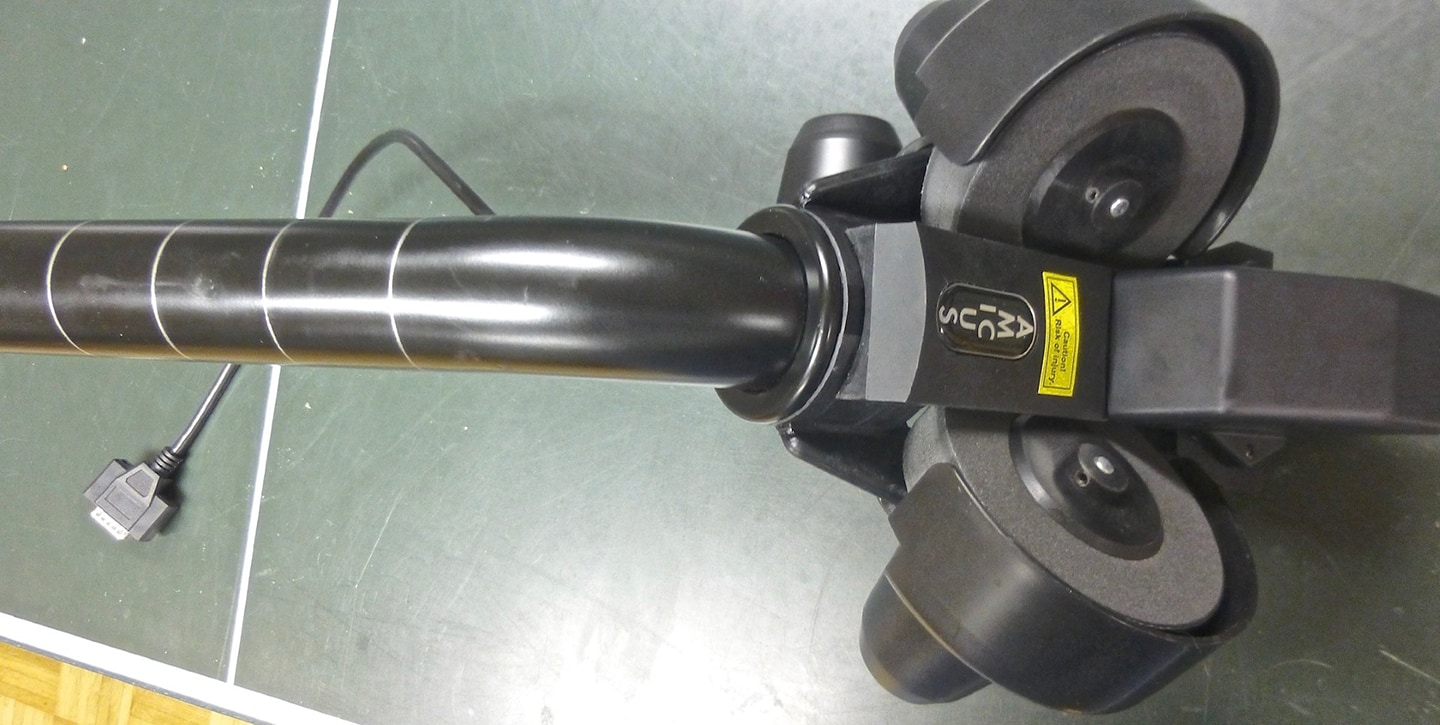
Should take only 1-2 minutes. Here’s a photo showing the head after it is removed from the net:
Robot FAQ: Remove and Reinstall Robot Head

7. How do I transfer existing exercises from tablet 1 => tablet 2?

To transfer drills from one device to another, set up an email account (Gmail seems to work best) on each device. On the device with the exercises you want to export, tap Edit at top right on the Exercise List. Next, tap the checkbox on the left of each exercise you want to export. Then tap Share at top right. Select Gmail (or whatever your email account is set up in). You will then see a new email message with an .amicusgame file attached to it. Send that message to your email address.

On the device you want to import those exercises, make sure you have the Amicus app installed and then restart the device. Then open the email on that device. Tap the .amicusgame file to download it to the Downloads folder. Open the Files app and navigate to the Downloads folder. Tap the .amicusgame file and the Amicus app should open and present an OK To Import message. Tap Yes and all the exercises you checkmarked on the first device will be added at the bottom of the Exercise List on the second device.

8. Will the Amicus Robot fit the Stiga optimum 30 table (which is a 30 mm thick table)?

Even though the specifications say it is designed for 25mm max thickness tops, if you adjust the Support Legs all the way out and then adjust calibration height, it will work just fine. Another alternative is to remove the Rubber Tips from the Support Legs. Either way will allow the robot to function normally.The first option pitches the robot slightly forward, but calibration can adjust the Deflector Plate’s angle to compensate.

With the second option, it would be almost exactly the same as mounting the robot on a 25mm table while using the Rubber Tips. The thickness of the tops of the Rubber Tips is almost exactly 5mm.

You should also order the special extra tall Control Panel Bracket, part # RP15B. It will allow the control panel (tablet) to sit flat on the side of the table. The regular bracket that comes with robot will work, but will be tilted up slightly.

9. Is there a way we can increase or decrease the amount of time the robot waits before shooting out a ball? If not, could it just be an upgrade on the software? When I serve and the second ball bounce hits, on a short serve, I can hear the robot spin up but my serve has then bounced at least twice on the robots side.

Yes, there is a way to adjust the amount of time it takes for the first ball to be thrown out after the player’s serve. Select the last ball of the exercise and use a minus adjustment of the Ball/min % control to delay the first ball or a positive adjustment if you want the first ball to be thrown out quicker. What the Ball/min % control does is add to or subtract from the wait period between the ball it is set for until the next ball is thrown out. In this case, since you want to adjust the wait time between the last ball and the first ball, you will use a Ball/min % adjustment to the last ball of the exercise.

With that said, this control seems to work much better for delaying the first ball than for making the first ball be thrown out quicker.

10. How does the Amicus help with No-Spin balls or work against anti?

Amicus robots will help you train against anti primarily by allowing you to practice against dead balls, which anti players specialize in. Since the majority of players play with inverted rubber, most of their shots will carry significant amounts of spin and rarely no spin (except on occasional serves). And if you are fortunate enough to have an anti player to practice with, often their shots are hard to maintain a consistent rally with, so it’s hard to get quality practice against a lot of dead balls. Amicus robots allow you to practice for extended periods against dead balls regardless of the quality of your practice partners.

What the robot won’t help you with is reading what spin is coming off the opponent’s anti. And you need to know that before you can adjust your stroke for your return of their shots. Many of their anti shots will be dead, but if you put a lot of spin on your shot, you can get smaller amounts of the opposite spin back. So you still need to practice against anti players to develop the critical skill of reading the ball correctly. And use the robot for practicing against dead balls and the stroke adjustments you’ll need to make between spinny shots and dead balls.

Something else that is usually easier to practice on the robot is the transition from hard driving shots that land deep on the table and short dead balls that land close to the net. Many anti players use this combination of short dead blocks followed by, or preceded by, a harder and faster drive to work the opponent back and forth. You can easily set the Amicus robot to alternate between short dead balls and faster long shots, either with topspin or dead.

11. The Amicus robot keeps getting stuck and then all the lights start blinking. I will repeatedly unplug it to reset it and remove the head so that all the balls fall down from the neck. What do you think is causing this? How should I resolve this?

Those blinking lights are probably a ball jam alert. Please remove all the balls from the ball tray. Then remove the head from the net by loosening the Black Knob and pulling the head up. Leave the Head Cable connected and place the head wheels up on top of the table. Then tilt the entire net down onto the table. Any balls in the lower ball channel should roll out of the top of the Lower Ball Tube. There is an access slot at the bottom of the base where you can stick a pencil or other long cylindrical object to push out any balls that might remain in the lower channel.

After all balls are removed, tilt the robot back into its normal position attached to the end of the table. Then start ball feed without any balls. If the Ball Stirring Springs continues to rotate, there is something wrong in the ball channel. Ball that was damaged or too large, a dent in the ball tube, a foreign object, sticky substance, etc. If so, be sure that a ball placed in the channel will roll without restriction from the bottom of the channel to the top.

If ball feed does stop and the Control Panel lights up without any balls in the ball channel, unplug and then re-plug the 25-pin serial cable at both ends and try ball feed again. Also examine the pins at both ends to be sure there are 25 pins and all a straight (not bent). If ball feed still does not continue, there is something wrong with the ball feed mechanism and you will have to disassemble the base to troubleshoot further. Here are the steps to do so:

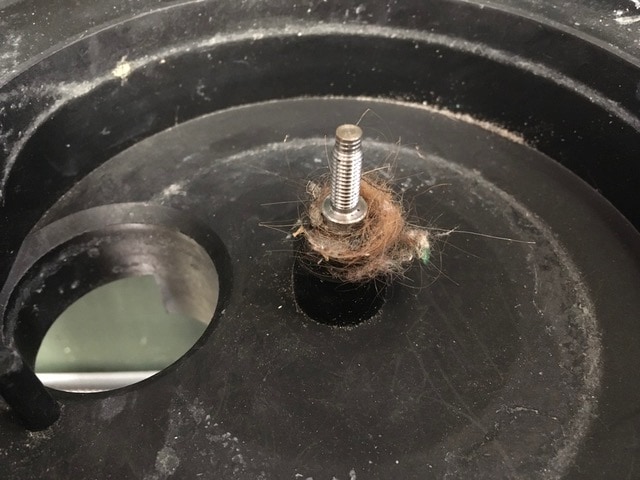
  1.  Unscrew the Ball Stirring Springs by grabbing the hub and turning counterclockwise. See if hair or fibers have become entwined around the shaft of the Ball Feed Gear:
    Amicus FAQ: Inspect Robot
    If you find any hairs, remove them and then test ball feed to see if the problem persists.
  2. Unplug the robot from power, unhook it from the end of the table, and place it on top of your table.
  3. Remove the Robot Head by unplugging the Head Cable, loosening the large Black Knob on the rear of the Ball Tube, and then pulling up on the head.
  4. Detach the Velcro from the Base Top.
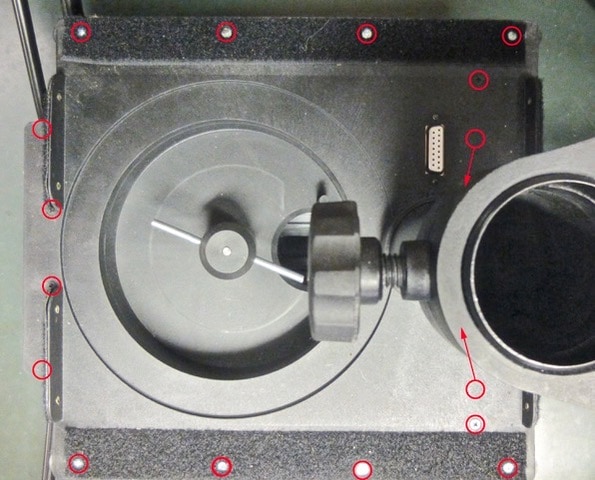
  5. Unscrew the 16 #1 Philips screws that hold the Base Top onto the Base Bottom. Here’s a photo showing the location of those 16 screws:
    Amicus FAQ: Inspect Robot #2
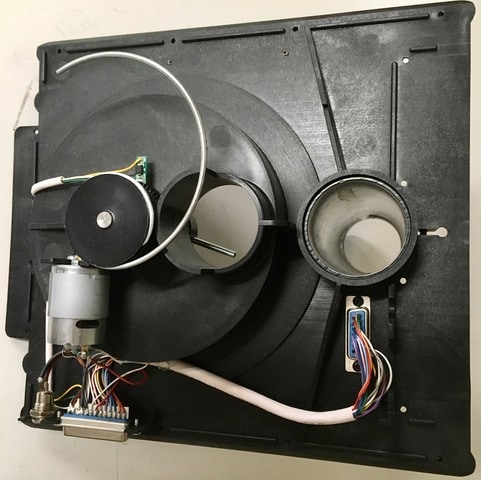
  6. Remove the Base Top and turn it upside down.
    Amicus FAQ: Inspect Robot #3
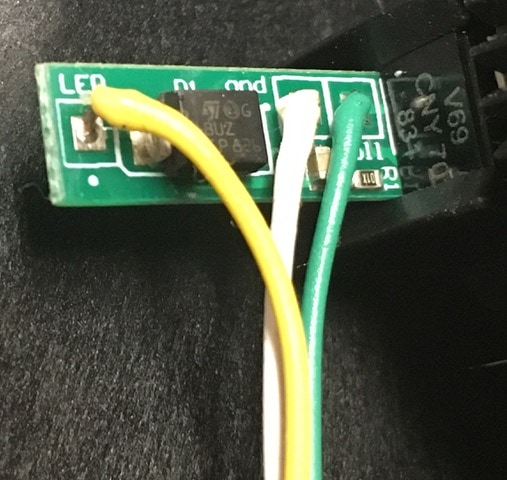
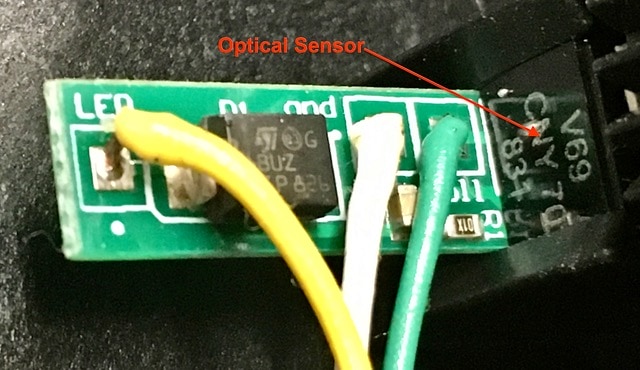
  7. Examine the 3 wires to be sure they are securely soldered to the Optical Sensor Circuit Board:
    Amicus FAQ: Inspect Robot #4
  8. If any of those wires have gotten pulled off that circuit board, then they will need to be re-soldered back onto that board.
  9. If you find the yellow, green, and white wires still soldered to the Optical Sensor Board, the next step is to remove the Ball Feed Gear to clean and inspect it. Start by unscrewing the Ball Stirring Springs (counterclockwise) and prying off the E-Clip that holds the shaft of the Ball Feed Gear in place (you can see the E-Clip on the shaft of the left Ball Feed Gear shown in the next step). Once that E-Clip is removed, you can push the shaft through to the other side and remove the gear.
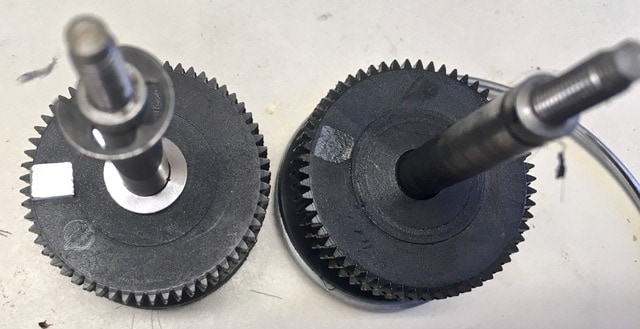
  10. Once the gear is removed, inspect the bottom surface to be sure the Silver Tag is still attached. Here is a photo of a gear with the Silver Tag attached on the left and one where the Silver Tag has fallen off on the right:
    Amicus FAQ: Inspect Robot #5
    If that Silver Tag is missing, the ball feed mechanism will not work properly. If that is your case, let me know and I can send you a new Silver Tag. If the Silver Tag is present, then clean up the gear and shaft, re-lube with a very small amount of grease, and re-install. Also clean away any dust or dirt that is around the Optical Sensor:
    Amicus FAQ: Inspect Robot #6
  11. If the wires to the Optical Sensor are still attached and the Silver Tag is present, then the problem is most likely the Ball Feed Motor itself, and it will need to be replaced. Occasionally, it could be that the two mounting screws of the Ball Feed Motor are just loose and need to be tightened.Let me know what you find. If you find anything from the above suggestions, before you reassemble everything, verify that ball feed is working correctly by testing the ball feed mechanism as shown in the attached video. When testing ball feed, hook up the parts as shown in the video (also connect the Head Cable to the Base Top), start a drill, and then change the Ball/min knob to see if the Ball Feed Motor changes according to that setting.

    The video shows me testing ball feed on an Amicus Expert model which is a little different than the Amicus Advance that you have. The cable that connects the Control Panel to the robot is different and the Advance does not have a circuit board directly connected to the Base Top. But you want to assemble your parts in a like manner and test ball feed to be sure it continues running before you re-attach the Base Top to the Base Bottom.

Latest News

A Forehand Stance While Blocking

June 1, 2026
(By Larry Hodges, Member of US Table Tennis Hall of Fame Many players go into a backhand stance… Read More

Does Watching High-Level Players Help Amateur Players Improve? By Coach Bob Chen

June 1, 2026
(By Coach Bob Chen) Many amateur players enjoy watching high-level matches. They watch world-class rallies. They study professional… Read More

US Nationals Preview: Two Weeks Until the June 16 Entry Deadline

June 1, 2026
(by Steve Hopkins, graphic USATT) Action is set to start on July 3rd in San Jose for this… Read More

WAB CLUB FEATURE: Table Tennis & More

May 31, 2026
(By Steve Hopkins) Table Tennis & More (TT&M) was founded by Len Winkler in 1996. Over the years,… Read More

Triple Crown for Saarbrucken – TTBL Champion

May 31, 2026
(by Steve Hopkins, photo TTBL via BeLa Sportfoto) FC Saarbrucken TT won the Final Four, securing the German… Read More

What should be your goal when the ball comes high?

May 28, 2026
Robot plays very high balls to very long Backhand. ( 20-25 balls per minute) FETHOMANIA 27: Drill 2… Read More

Angel Naranjo – Serve Return & Forehand Loop

May 28, 2026
(by: Bowmar Sports) In this Butterfly Training Tips, Angel Naranjo is executing a over the table push, followed… Read More

Anav Gupta – Backhand Flip & Backhand Loop Combo

May 26, 2026
(by: Bowmar Sports) In this Butterfly Training Tips, Anav Gupta is executing a drill where he will Backhand… Read More
View All News

Get the latest from Butterfly

Stay “In The Loop” with Butterfly professional table tennis equipment, table tennis news, table tennis technology, tournament results, and We Are Butterfly players, coaches, clubs and more.